



4.10. Example JSP File Upload Script
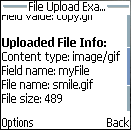
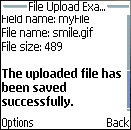
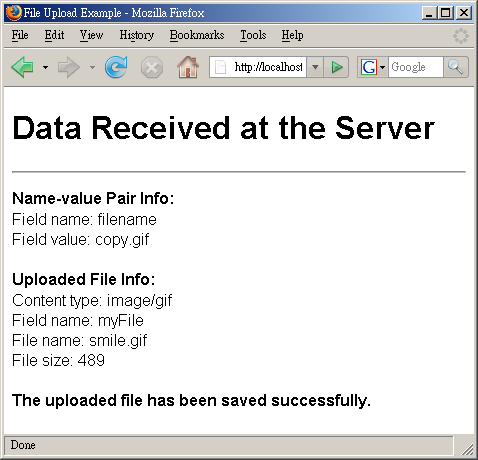
Below shows a JSP file upload script that is used to print out the name-value pair received from the earlier XHTML MP document and save the uploaded file to a certain location on the WAP server. Remember to change the action attribute of the <form> element in the earlier XHTML MP document from file_upload.php to file_upload.jsp for this example to work.
<?xml
version="1.0"?>
<!DOCTYPE html PUBLIC
"-//WAPFORUM//DTD XHTML Mobile 1.0//EN"
"http://www.wapforum.org/DTD/xhtml-mobile10.dtd">
<%@
page import="org.apache.commons.fileupload.*,
org.apache.commons.fileupload.servlet.ServletFileUpload,
org.apache.commons.fileupload.disk.DiskFileItemFactory,
org.apache.commons.io.FilenameUtils, java.util.*, java.io.File,
java.lang.Exception" %>
<%
response.setContentType("application/vnd.wap.xhtml+xml");
%>
<html
xmlns="http://www.w3.org/1999/xhtml">
<head>
<title>File
Upload Example</title>
</head>
<body>
<h1>Data
Received at the Server</h1>
<hr/>
<p>
<%
if
(ServletFileUpload.isMultipartContent(request)){
ServletFileUpload
servletFileUpload = new ServletFileUpload(new
DiskFileItemFactory());
List fileItemsList =
servletFileUpload.parseRequest(request);
String
optionalFileName = "";
FileItem fileItem =
null;
Iterator it = fileItemsList.iterator();
while
(it.hasNext()){
FileItem fileItemTemp =
(FileItem)it.next();
if
(fileItemTemp.isFormField()){
%>
<b>Name-value
Pair Info:</b><br/>
Field name: <%=
fileItemTemp.getFieldName() %><br/>
Field value: <%=
fileItemTemp.getString() %><br/><br/>
<%
if
(fileItemTemp.getFieldName().equals("filename"))
optionalFileName
= fileItemTemp.getString();
}
else
fileItem =
fileItemTemp;
}
if (fileItem!=null){
String
fileName = fileItem.getName();
%>
<b>Uploaded File
Info:</b><br/>
Content type: <%=
fileItem.getContentType() %><br/>
Field name: <%=
fileItem.getFieldName() %><br/>
File name: <%=
fileName %><br/>
File size: <%= fileItem.getSize()
%><br/><br/>
<%
/* Save the uploaded
file if its size is greater than 0. */
if (fileItem.getSize()
> 0){
if
(optionalFileName.trim().equals(""))
fileName =
FilenameUtils.getName(fileName);
else
fileName =
optionalFileName;
String dirName =
"/file_uploads/";
File saveTo = new
File(dirName + fileName);
try
{
fileItem.write(saveTo);
%>
<b>The
uploaded file has been saved
successfully.</b>
<%
}
catch
(Exception e){
%>
<b>An error occurred when we
tried to save the uploaded
file.</b>
<%
}
}
}
}
%>
</p>
</body>
</html>
The following screenshots show what you will see in the Nokia 6230 cell phone:
|
|
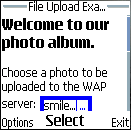
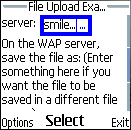
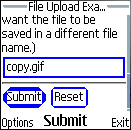
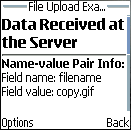
The above JSP script is very straightforward. Most of the code has been covered earlier. Below shows some lines of code that you may be unfamiliar with.
The line:
<% response.setContentType("application/vnd.wap.xhtml+xml"); %>
is used to set the MIME type of the JSP document. "application/vnd.wap.xhtml+xml" is the MIME type of XHTML MP.
The line:
fileName = FilenameUtils.getName(fileName);
is used to extract the file name from a path. (FilenameUtils is a class of the org.apache.commons.io package in the Apache Jakarta Commons IO library.) For example, both FilenameUtils.getName("/files/myFile.txt") and FilenameUtils.getName("myFile.txt") return the string "myFile.txt". The above line of code is necessary in our JSP script since some browsers provide the full path of the uploaded file in the HTTP request and so after the execution of the following line, the fileName variable may contain a path but not a file name.
String fileName = fileItem.getName();
As XHTML MP is compatible with HTML/XHTML, the resulting XHTML MP document generated by the JSP script can also be viewed on web browsers such as Microsoft Internet Explorer and Mozilla Firefox. The only thing you need to do is to remove the following line from the JSP script:
<% response.setContentType("application/vnd.wap.xhtml+xml"); %>
This is because unlike WAP 2.0 browsers on cell phones, Internet Explorer 6 and Mozilla Firefox 2.0 do not understand the MIME type of XHTML MP. Instead of displaying the XHTML MP document, they will pop up a dialog box asking you to select a program to open the document or save the document on disk.
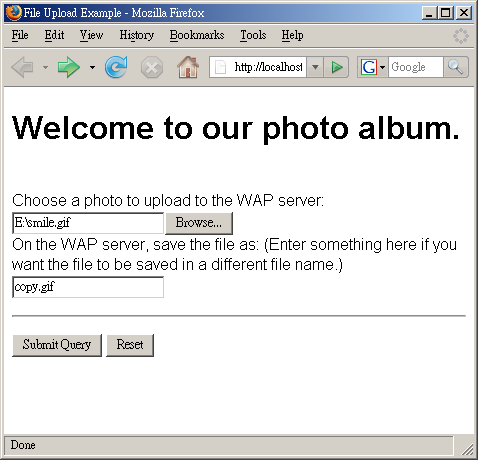
The following screenshots show the result on Mozilla Firefox 2.0:
|
|
| Previous Page | Page 10 of 11 | Next Page |  |